Inside a FortMind Lab: Hacking a Web App From Your Browser
What a FortMind lab actually feels like, step by step: launch a private lab in one click, get an attacker desktop in your browser tab, read a target like an attacker, and find the broken access control behind Quillpad's staff area. No VPN, no installs.
"Hands-on" is the most overused word in cybersecurity training. Too often it means a video, a quiz, and a screenshot of someone else's terminal. At FortMind, every lesson ends in a lab you actually attack, and you do it from the browser you are reading this in.
This post walks through one real lab from start to finish, so you can see exactly what a FortMind student experiences. The lab is Quillpad, the capstone of the "How the Web Works" unit in our foundations course, FM-F100. Quillpad is a small, fictional note-taking website with a staff-only area that is not as private as its developers think.
We won't hand you the answer. The lab is only valuable if you work it out yourself. But by the end you will know what the journey looks like, what you will learn, and why the vulnerability behind it is one of the most common on the web.
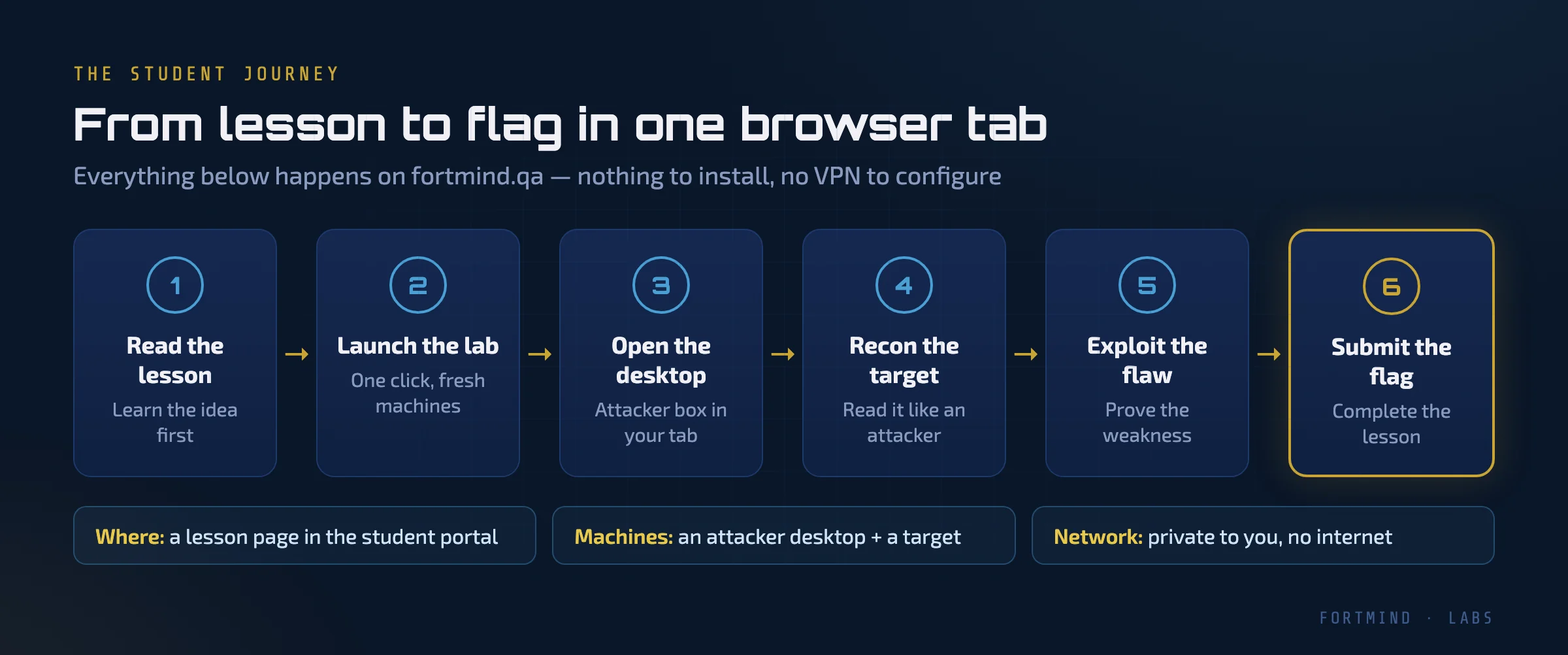
Step 1: Start with the lesson, not the lab
Every lab sits inside a lesson. Before you touch a machine, the lesson explains the ideas the lab will test. For Quillpad, that means the earlier lessons in the unit: how a browser talks to a server, what HTTP requests and responses carry, how HTML is put together, and what cookies are for.
This order is deliberate. A lab with no context turns into guessing. A lab that follows a lesson turns into practice: you already know what to look for, and the lab teaches you how to find it on a real system.
The lesson page also holds the lab panel. That's where you launch the machines, see which ones you can use, and later submit the flag.
Step 2: Launch the lab with one click
When you press launch, FortMind builds a fresh, private copy of the lab just for you. For Quillpad that means two machines:
- kali, the attacker machine you control: a Linux desktop with a web browser and a terminal.
- quillpad, the target web server you are attacking.
The two machines sit on their own isolated network. It is created when you launch, it belongs to your session only, and it has no internet access in either direction. Nothing you do in the lab can leak out, and nobody outside can reach in.
After a short wait while the machines boot, the panel switches to running and the desktop appears.
One rule worth knowing: you can run one lab at a time. A lab with several machines counts as one lab. If you try to start a second lab while the first is still running, the portal tells you which one is active and offers to stop it so you can switch.
Step 3: Your attacker desktop, inside a browser tab
This is the part that surprises most new students. There is no VPN to configure, no virtual machine to download, and nothing to install. The attacker desktop is streamed into your browser tab. You click, type, and open terminals as if the machine were in front of you.
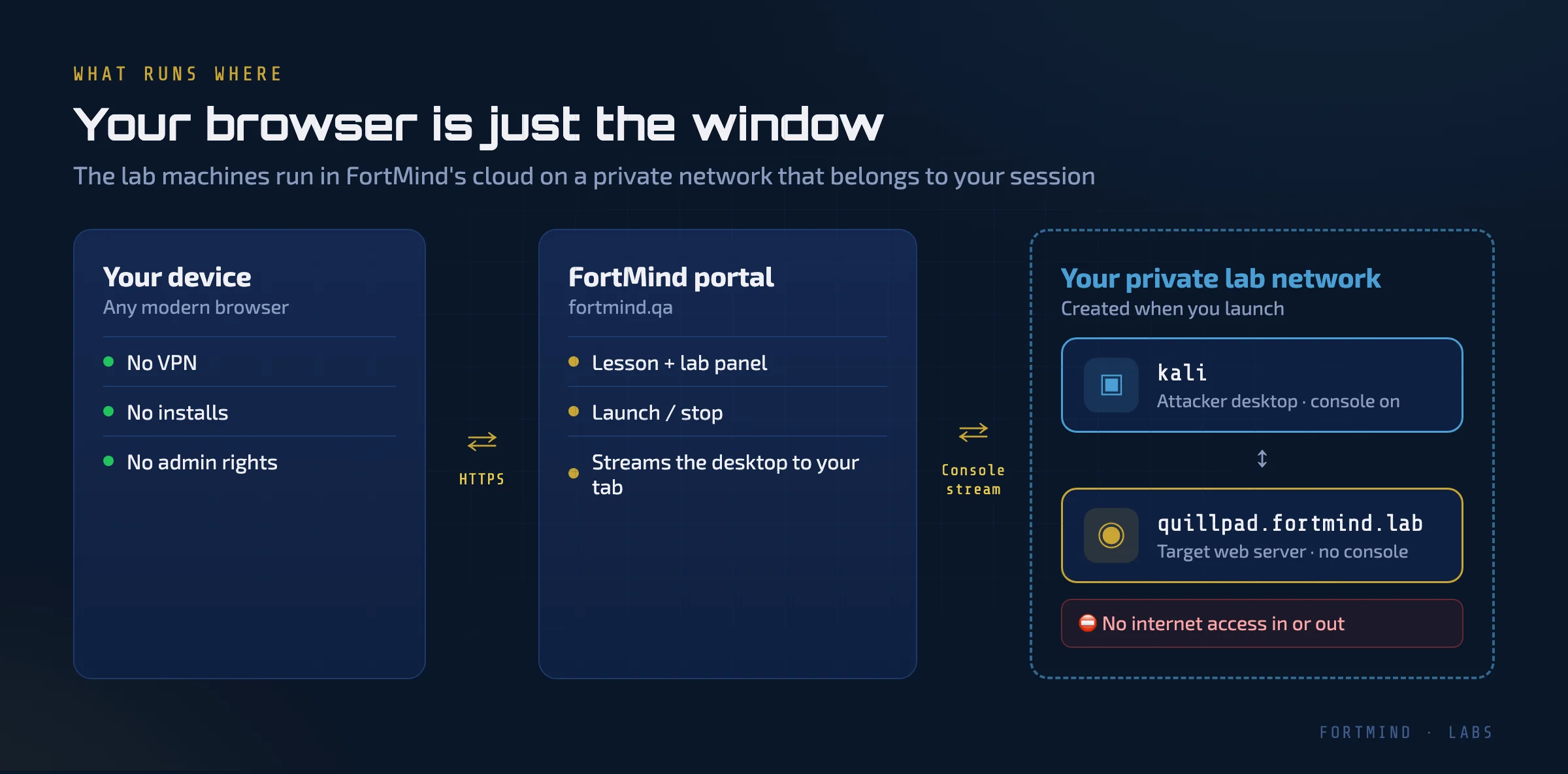
Two details make this feel like a real engagement rather than a toy:
- The target has a name, not just an address. Inside the lab, the target answers to
quillpad.fortmind.lab. The name is set up on your attacker machine automatically when the lab starts, so you work with it the same way you would with a real website. - You get no console on the target. The lab panel only shows the machines you are meant to use. Quillpad is a server you attack over the network, exactly like a real target. You don't get a shortcut onto it.
Step 4: Recon, or reading the site like an attacker
Beginners often expect hacking to start with a clever exploit. In practice it starts with patient reading. Before you attack anything, you find out what the application is, what it shows, and what it accidentally gives away.
On a web target, a good first pass covers four places:
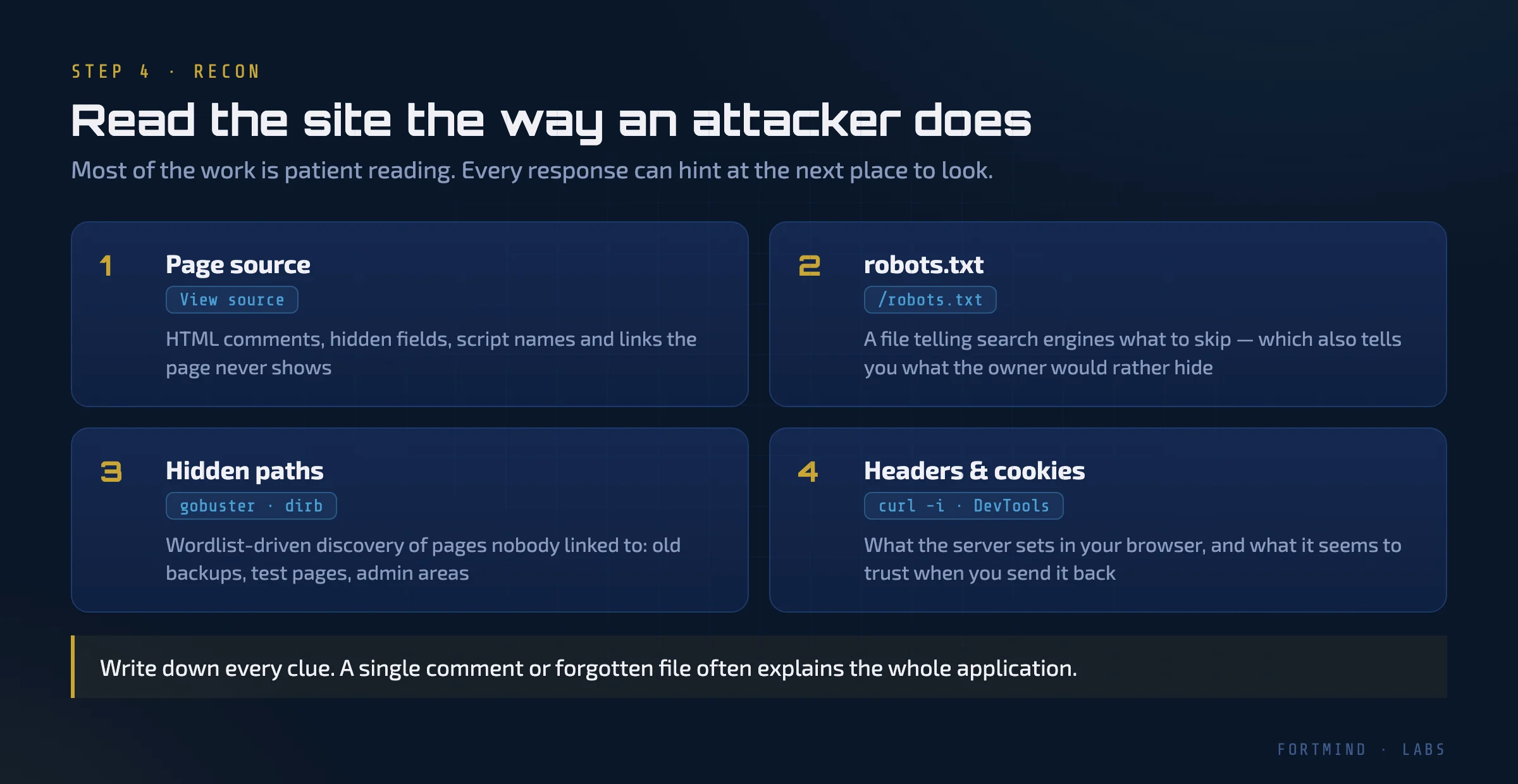
- The page source. What you see in the browser is not everything the server sent. HTML comments, hidden form fields, script names, and links that never appear on screen are all visible with "view source". Developers leave notes there more often than they should.
robots.txt. This public file tells search engines which parts of a site to skip. It is meant as a polite request, not a security control. To an attacker, a list of "please don't look here" is a list of places worth looking.- Hidden paths. Tools like
gobusteranddirbsend thousands of common directory and file names to a website and report which ones exist. This is how people find old backups, test pages, and admin areas that nothing links to. - Headers and cookies. Using
curl -iin the terminal or the browser's developer tools, you can see what the server sets in your browser and what it expects back. A cookie isn't just a technical detail. It's something the server has decided to trust.
The skill this lab builds is following a trail. Each response is a clue, and each clue tells you where to look next. Write everything down. On Quillpad, as on many real sites, one forgotten note explains the whole application.
Step 5: The vulnerability is trusting the client
Quillpad has a staff area. Visit it as an ordinary visitor and the server politely refuses you. The interesting question is: how does the server decide who counts as staff?
That question leads to one of the most common web vulnerabilities: broken access control. It sits at number one, A01, in the OWASP Top 10 (2021), the best-known list of web application security risks.
At its simplest, broken access control means the server lets you do something you shouldn't be allowed to do. A very common version is a server that makes its security decision based on information sent by the user's own browser: a cookie value, a hidden form field, a parameter in the URL. Anything the browser sends, the user can change.
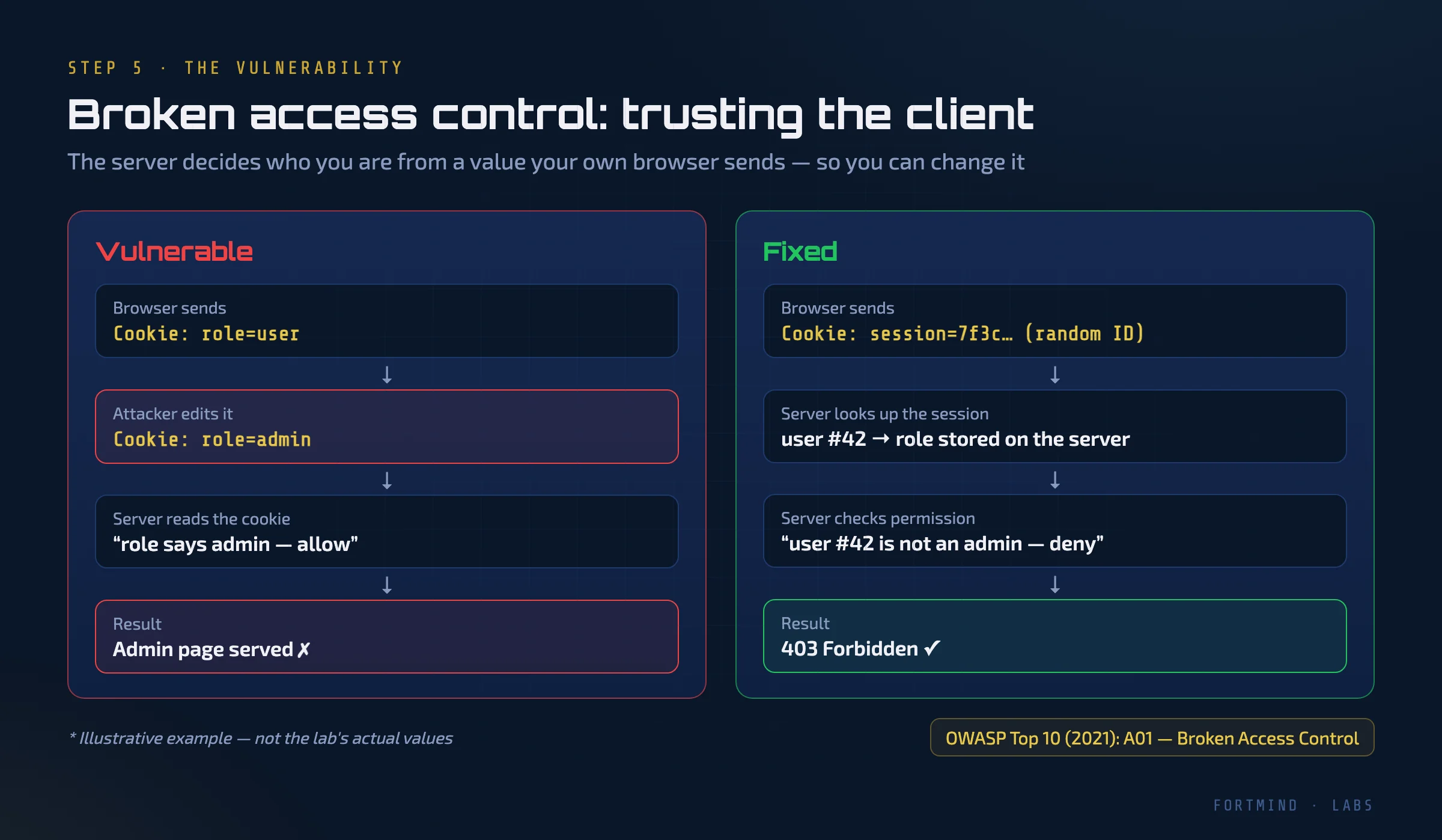
The figure shows the pattern with a made-up example (these are not the lab's actual values). On the left, the server reads a role straight from a cookie. Change the cookie and you change your role. On the right, the browser only holds a random session ID. The server looks up who that session belongs to and what they are allowed to do. Editing the cookie gets you nothing except a 403 Forbidden.
In the Quillpad lab, your job is to combine the clues you collected during recon, work out what the staff area really checks, and prove you can get past it. When you do, the page gives you a flag: a unique string that proves you completed the challenge.
Step 6: Submit the flag
Back on the lesson page, you paste the flag into the lab panel. A correct flag completes the lesson and moves you forward in the course.
The flag is the proof of the skill, but the skill itself is the sequence you just followed: read the lesson, map the target, follow the evidence, form a theory about how the application makes decisions, and test it. That sequence is the same whether the target is a training website or a real penetration test.
How developers prevent this
A good lab teaches both sides. Once you have broken Quillpad, the next question is how its developers should have built it.
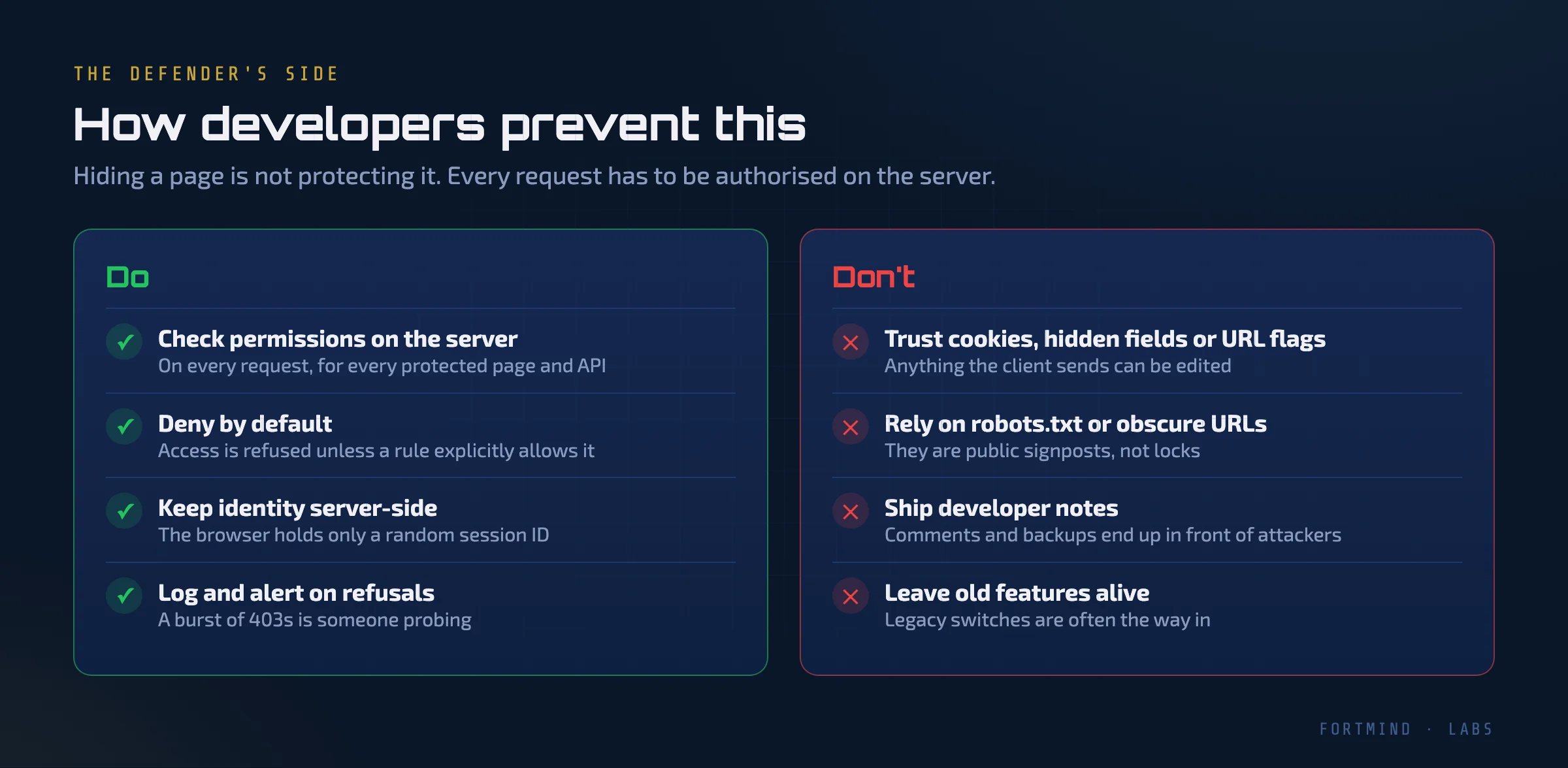
The core rule is simple: hiding a page is not protecting it. Every request to a protected page or API has to be checked on the server, against information the server controls. In practice:
- Check permissions on the server, on every request. Don't only check on the login page, and never only in JavaScript.
- Deny by default. A request is refused unless a rule explicitly allows it.
- Keep identity and roles server-side. The browser should hold only a random, unguessable session ID.
- Treat
robots.txtand unlinked URLs as public. They are signposts, not locks. - Don't ship developer notes. Comments, backup files, and "temporary" debug features end up in front of attackers.
- Log refused requests. A burst of
403responses usually means someone is probing.
Lab etiquette: how a session lives and ends
Labs are temporary by design, and that's what makes them safe to break.
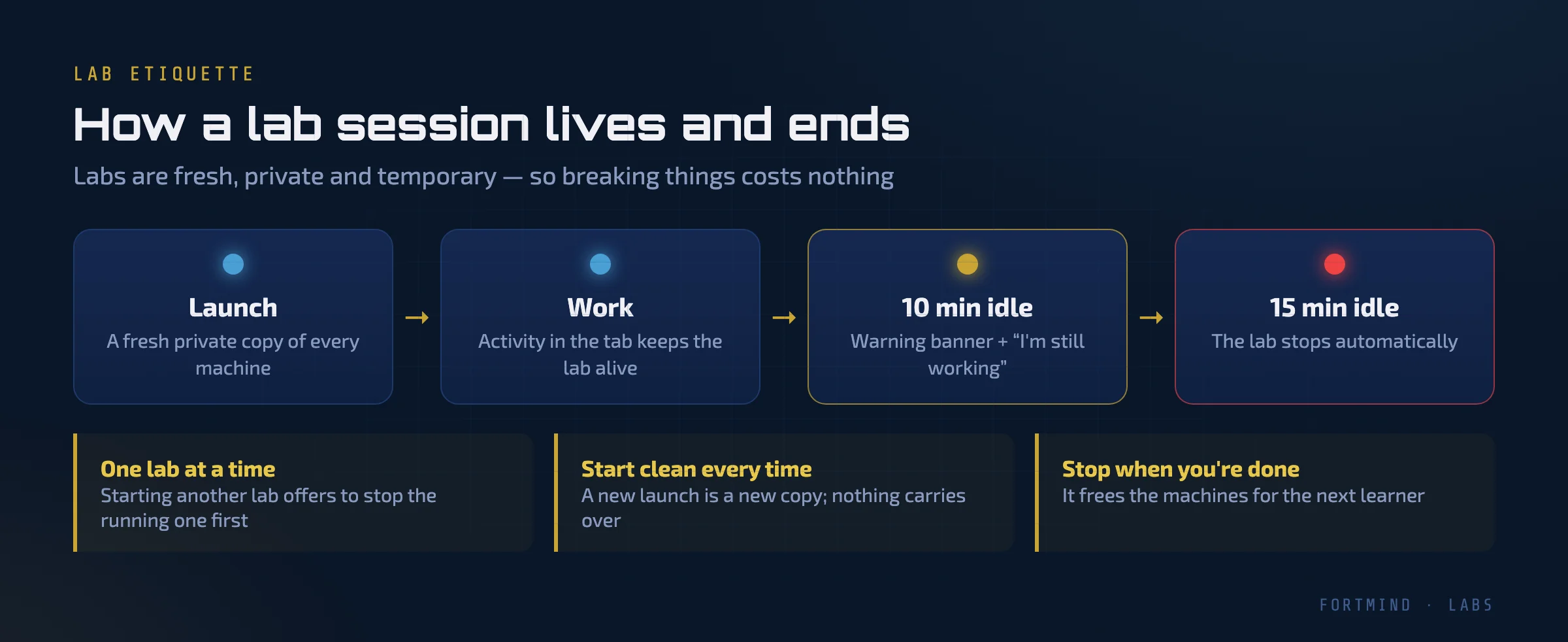
- Every launch is a fresh copy. If you break something badly, stop the lab and launch again. Nothing carries over from the last session.
- Activity keeps the lab alive. While you work in the tab, the lab stays up.
- Idle labs stop themselves. After 10 minutes without activity, a warning banner appears with an "I'm still working" button. After 15 idle minutes, the lab stops automatically.
- Stop it when you're done. It frees the machines for the next learner.
Where this leads
Quillpad is a beginner lab. It is where FM-F100 brings the whole "How the Web Works" unit together into one attack. The same habits carry forward:
- FM-O200, our penetration testing course, takes you through the full pentest process on a wider range of targets, including more web vulnerabilities, network services, and privilege escalation.
- FM-O300 applies the same mindset to Active Directory and red-team tradecraft inside a full enterprise range.
Each step is the same experience you just read about: a lesson, a private lab in your browser, and a flag you have to earn.
Start with a free lab
The best way to understand a FortMind lab is to run one. Go to fortmind.qa and choose Start a free lab to tell us about yourself. We will get you set up, and you can attack your first target from your own browser, in English or Arabic.